AI Expand Image in 2026: The Right Tool for Uncrop, Outpaint, and Extend Photos
If you need to make a photo wider or taller without stretching it, the real question is not which brand is best. It is whether you need a quick uncrop tool, a preserve-first editor, a conversational image editor, or a masked API workflow.
On this page
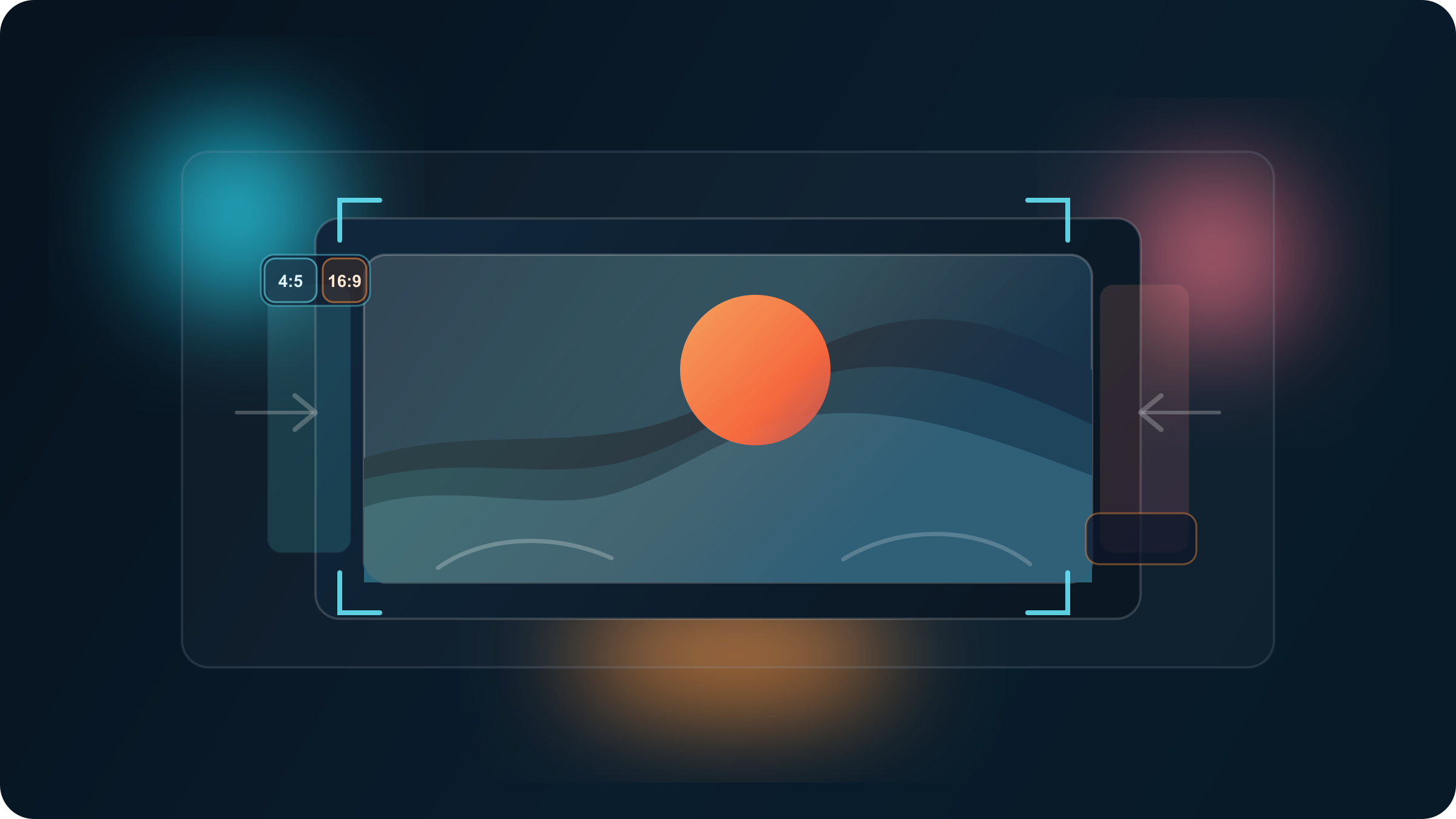
If you need to turn a tight portrait into a banner, add breathing room around a product shot, or extend a landscape beyond its original crop, do not stretch the image. Use AI outpainting instead. For quick online format rescue, start with a dedicated uncrop tool like Clipdrop. When the original photo matters and you care about continuity, Photoshop Generative Expand is the safer default. If you want to grow the scene with natural-language edits, ChatGPT Images is the easiest prompt-first route. If you need repeatable automation, use Vertex AI Imagen or OpenAI’s image APIs.
What matters is that these are several different jobs, not one vague promise. There is a big difference between fixing aspect ratio, protecting a subject while extending the frame, creatively inventing more scene around an image, and building a masked production workflow that has to behave the same way every time.
All freshness-sensitive facts below were rechecked against official product pages, help docs, or API documentation on March 27, 2026.
TL;DR
Here is the short answer.
| If this is your real job | Best tool to open first | Why it wins | Main tradeoff |
|---|---|---|---|
| You just need a wider or taller version of the same image for social, ads, or slides | Clipdrop Uncrop | Fastest dedicated aspect-ratio workflow | Great for quick rescue, weaker for strict edge control |
| The original photo matters and you need the safest-looking extension | Photoshop Generative Expand | Best preserve-first workflow with immediate manual cleanup options | Slower and paid |
| You want to grow the scene with words and iterate conversationally | ChatGPT Images | Fast edit loop through selection or follow-up prompting | The edit boundary is not always precise |
| You need explicit mask behavior for products, backgrounds, or automation | Vertex AI Imagen | Clear BGSWAP and OUTPAINT edit modes | Developer setup overhead |
| You want an API that behaves more like a creative editor than a rigid compositor | OpenAI image APIs | Multi-turn editing, edit/generate control, prompt-first workflow | Masks guide the edit but do not behave like exact hard edges |
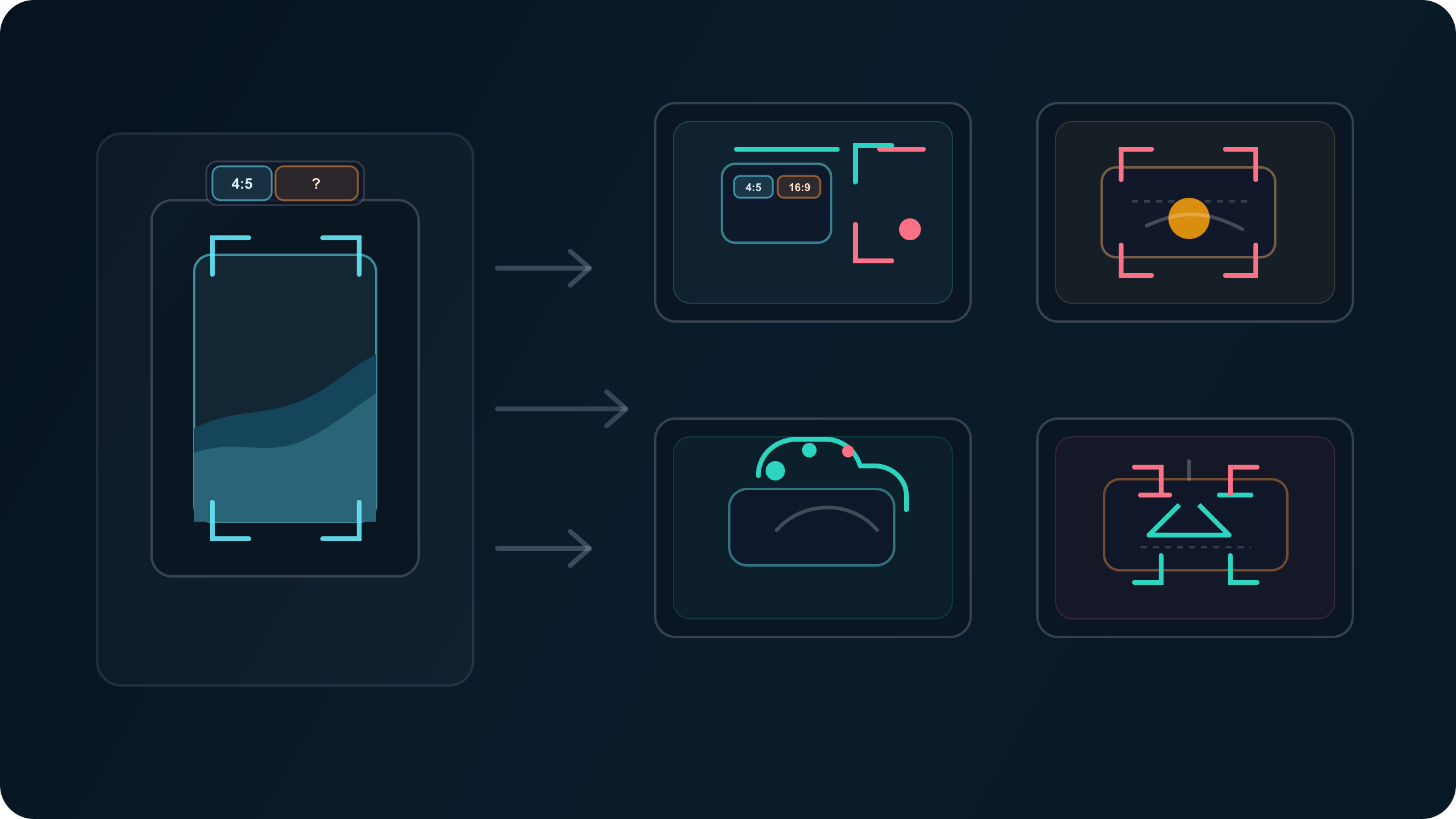
If you only remember one rule, make it this one: pick the lightest workflow that can still protect the part of the image you care about.
AI Expand Image Is Really Several Different Jobs
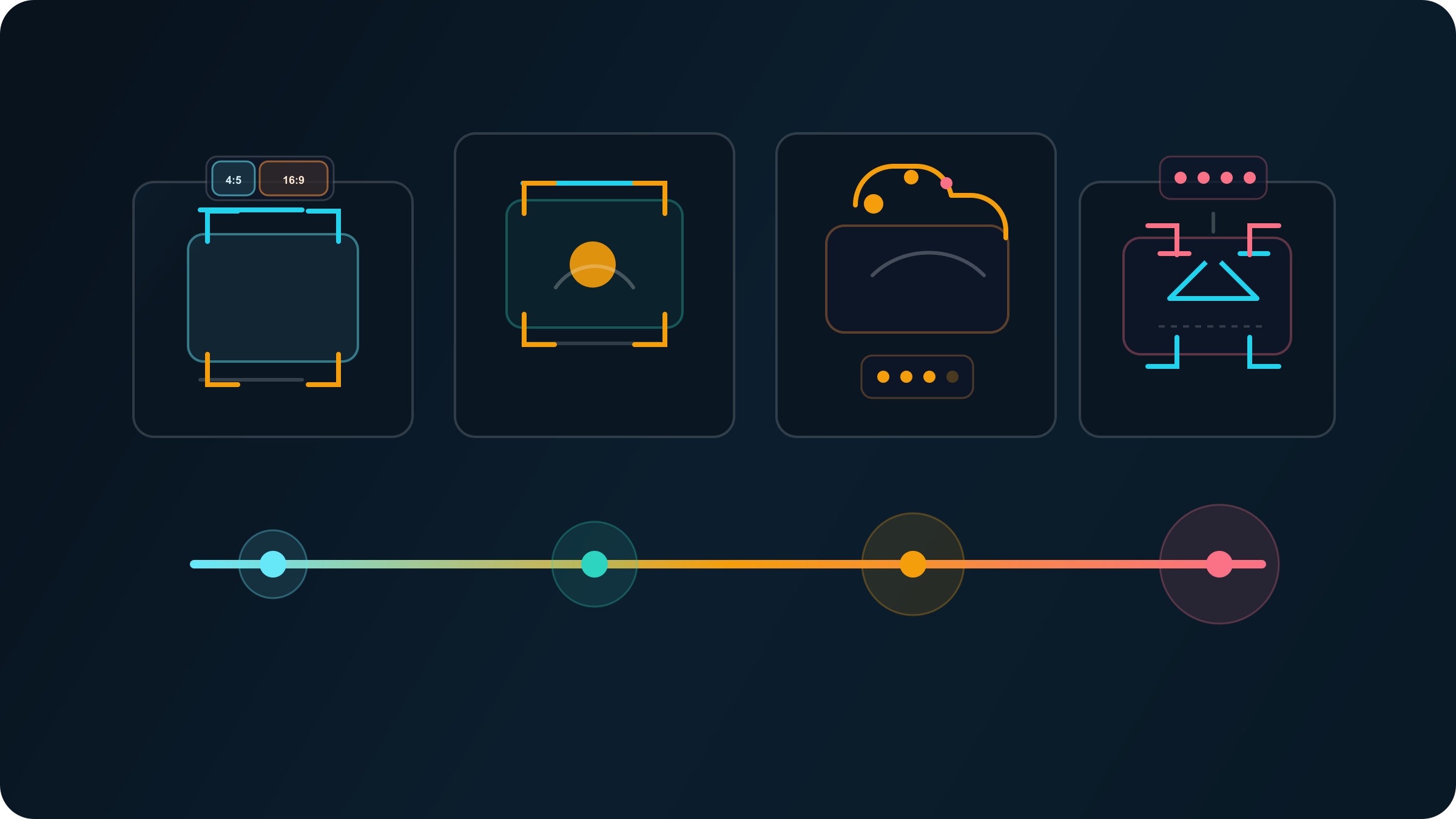
Expanding an image with AI sounds simple, but it actually hides at least four different tasks.
Layout rescue is the lightest one. You already like the image. You just need more width, more headroom, or a different ratio so it fits a hero section, a video thumbnail, or a social placement. This is where dedicated uncrop tools shine. The goal is not to redesign the image. It is to make the framing work.
Preserve-first photo expansion is harder. Maybe the subject is close to the edge, a shoulder is cut off, or the product needs more negative space around it. Now you are not only extending canvas. You are also protecting the original image from drift. That calls for a stronger editor, because the cost of an invented seam or distorted edge is much higher.
Prompt-first scene extension is different again. Here the reader actually wants the model to invent more of the world around the image. Maybe a portrait needs to feel like it was shot in a larger studio. Maybe a coffee shop scene needs more window area and table space. In this kind of work, conversational editors feel faster than masked editors because the user is guiding mood and composition, not just preserving pixels.
Production outpainting is the most technical job. This is what matters when you are extending many images, protecting hero products, or building a repeatable pipeline for ads, catalogs, or app workflows. Once repeatability matters, the right question stops being “which tool looks coolest?” and becomes “which system gives me the edit contract I need?”
That is why generic tool roundups feel unsatisfying. They pretend these are the same problem. They are not. The real mistake is not picking the “wrong brand.” It is asking a quick uncrop tool to do a masking job, or asking a chat editor to behave like a production compositor.
Clipdrop Uncrop Is The Fastest Way To Expand A Photo Online
Clipdrop’s own Uncrop page describes the tool as one “optimized to edit image aspect ratio,” and the workflow is exactly what most casual users want: upload an image, choose a new aspect ratio, and generate the wider or taller version. That makes it the clearest answer when your problem is simply, “This image was framed for one format and now I need another.”
That strength is worth taking seriously. If your original image is already good and your main problem is format mismatch, a dedicated uncrop tool removes a lot of cognitive overhead. You do not have to think about masks, compositing, or generative settings. You fix the canvas, review the result, and move on.
This is especially useful for:
- turning a 4:5 social image into a 16:9 banner
- adding safe margins around a landscape
- creating more background around a centered subject that is not cut off badly
Where Clipdrop-style tools become weaker is the moment the image boundary matters too much. If a person’s arm is cut at the edge, a product contour has to stay clean, or a straight architectural line must continue precisely, a one-click uncrop workflow can invent details that look plausible at first glance but break trust on a second look. That is not a failure of the category. It is a sign that the job has changed.
Use a dedicated uncrop tool when the real goal is framing rescue. The moment the real goal becomes subject protection, move up one level.
Photoshop Generative Expand Is The Safest Default When The Original Photo Matters
Adobe’s current Photoshop documentation is unusually clear about how Generative Expand is supposed to work. The official flow is: drag the crop handles outward to expand the canvas, choose Generative Expand, and if you want Photoshop to continue the image naturally, leave the prompt blank and hit Generate.
That blank-prompt detail is more important than it sounds. When your goal is continuity rather than reinvention, a blank expansion often produces cleaner extensions than a verbose prompt. You are telling Photoshop, in effect, “finish what this image already started.” That is a different instruction from “invent a whole new scene around this photo.”
This makes Photoshop the strongest default for:
- portraits where hair, shoulders, and clothing edges matter
- product photos that need more negative space
- interiors and exteriors with obvious straight lines
- editorial images where the original photo still has to feel like the original photo
It also gives you something quick web tools do not: a cleanup environment right next to the generation step. If the extension is mostly right but one edge feels wrong, you can retouch, mask, or crop back slightly without restarting in another tool.
My practical rule is simple. If the image itself matters more than the speed of the workflow, start in Photoshop. Expand blank first, then add a targeted prompt only if the missing area needs new intent rather than simple continuity.
ChatGPT Images Is The Easiest Way To Push The Scene With Words
OpenAI’s Help Center says the ChatGPT Images editor lets you edit images generated in ChatGPT either by selecting an area to update or by describing the change directly in the conversation. It also says something equally important: highlights are not always precise, and edits may extend beyond the specifically targeted area.
That warning explains exactly where ChatGPT Images shines and where it does not.
ChatGPT is excellent when you want to say things like:
- “Make this portrait feel like it was shot in a wider studio”
- “Extend the cafe window area and keep the subject centered”
- “Add more desk space on both sides and keep the mood the same”
In those cases, a prompt-first workflow is faster than painting exact masks because the missing canvas is partly a creative decision. You are not only extending the image. You are negotiating tone, space, and context with the model.
The same logic now carries into OpenAI’s developer-side tooling. The current image-generation docs say the Responses API supports multi-turn editing, accepts image inputs in context, and lets you control whether the tool should generate, edit, or decide automatically. That is a very good fit for products that want to behave more like a conversation than like a strict image pipeline.
The caution is that OpenAI’s GPT Image masking is also described as prompt-based guidance rather than exact-shape enforcement. So if you need hard guarantees around the untouched boundary of a hero product, ChatGPT-style editing is not the safest contract. But if you want the fastest path to “same image, wider scene, slightly different mood,” it is extremely strong.
If your broader question is really about which generator to live in for everyday creative work, read our best AI image generator guide.
Vertex AI Imagen And OpenAI API Are The Two Routes That Matter For Automation
Once you move from one-off editing to repeatable workflows, the decision gets sharper. The question is no longer “which image looks best in isolation?” The question becomes “which API contract matches the kind of control I need?”
Vertex AI Imagen is the clearer choice when the edit needs to behave in a structured, masked way. Google’s current edit docs explicitly distinguish between EDIT_MODE_BGSWAP and EDIT_MODE_OUTPAINT, and that distinction is practical, not academic. BGSWAP adds background content in the mask area while preserving object content in the unmasked area, which is why Google calls it useful for product editing. OUTPAINT extends the image into the mask area and can complete partial objects at the image boundary. Google also recommends mask_dilation around 0.01 to 0.03 for outpaint use cases and says the prompt should describe the masked area rather than use a single generic noun.
That is a strong production contract. It tells you how the system thinks and how you should shape the task.
OpenAI’s API is different. It is more flexible, more conversational, and better at iterative creative editing. You can build a workflow where the model keeps refining the same image through follow-up instructions, and you can explicitly force edit behavior when that matters. But OpenAI also says mask behavior is guidance, not an exact stencil. In practice, that makes it better for creative expansion workflows than for rigid “protect this object at all costs” jobs.
Here is the simplest way to choose:
| If you need | Better route | Why |
|---|---|---|
| Clean product preservation while extending the background | Vertex AI Imagen | Explicit masked edit modes and a more structured outpaint contract |
| A conversational image editor with iterative follow-ups | OpenAI Responses API | Multi-turn editing and natural prompt-driven refinement |
| Fast ideation first, stricter cleanup later | OpenAI + Photoshop/Vertex | Use chat-style expansion for exploration, then move into a preserve-first tool |
If your actual job is more about replacing or cleaning backgrounds than extending the frame, our Gemini image background change guide is the better next read.
How To Get Cleaner AI Image Expansion Results
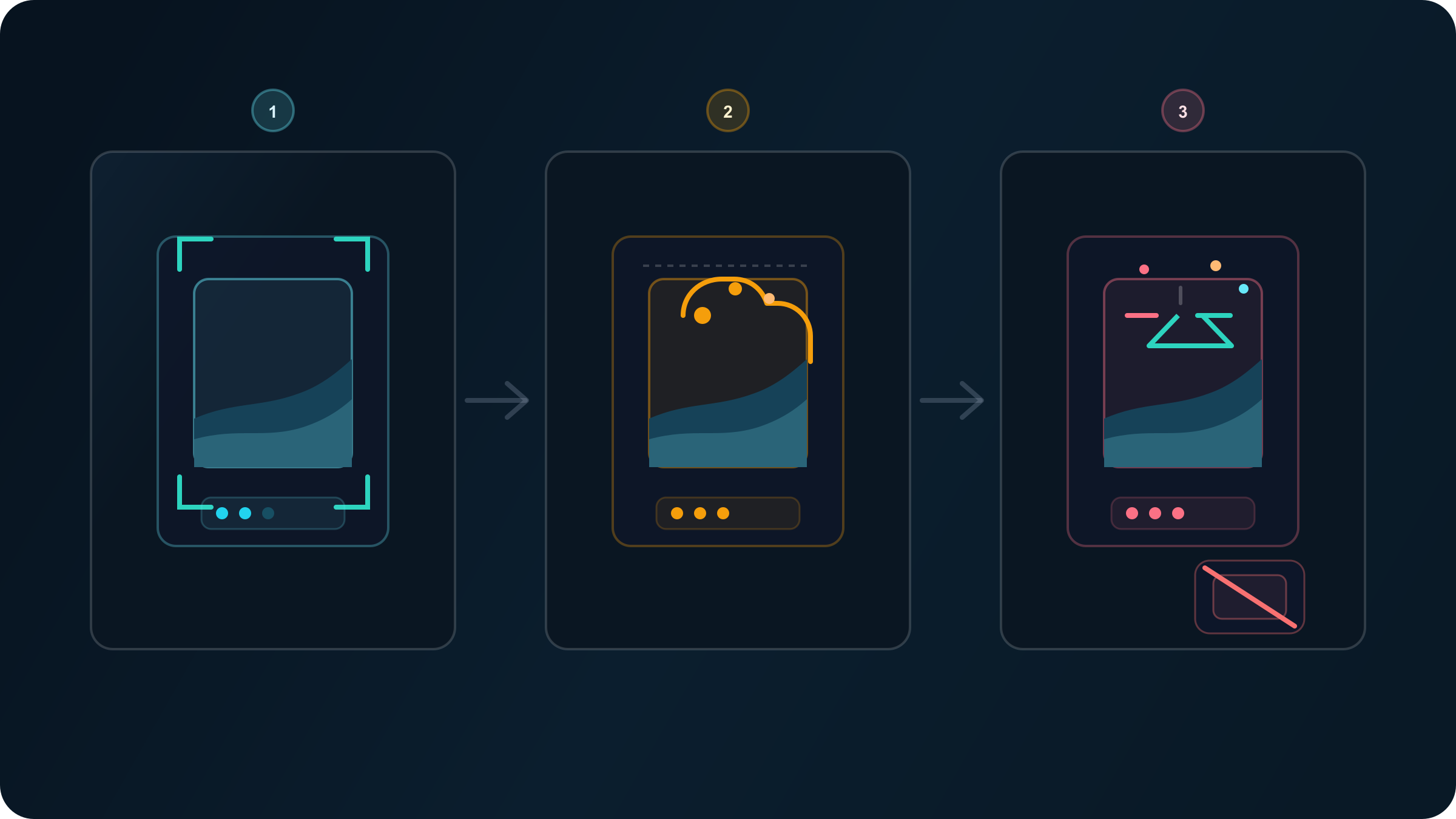
Most ugly AI expansions are not random. They come from predictable mistakes.
Make the canvas change smaller than you think.
The more empty territory you ask the model to invent in a single pass, the more likely it is to rewrite the image instead of extending it. In many real jobs, a 15% to 25% expansion solves the layout problem without pushing the model into fantasy-land.
Start with continuity, then add creativity.
This is where Photoshop’s blank-prompt workflow is so useful. First ask the model to continue the image naturally. Only after that should you prompt for stylistic or compositional changes. Combining “make it wider” with “also reinvent the scene” in one pass is how you get drift.
Protect the edge that matters most.
If a face, product edge, or object boundary is close to the crop, use a tool with selection or mask support. And do not make the protection too razor-thin. Even Google’s own Imagen docs recommend mask dilation for outpainting. In practice, a slightly more forgiving protection boundary often produces cleaner blends than a brutally tight mask.
Do not use AI expansion as a text repair tool.
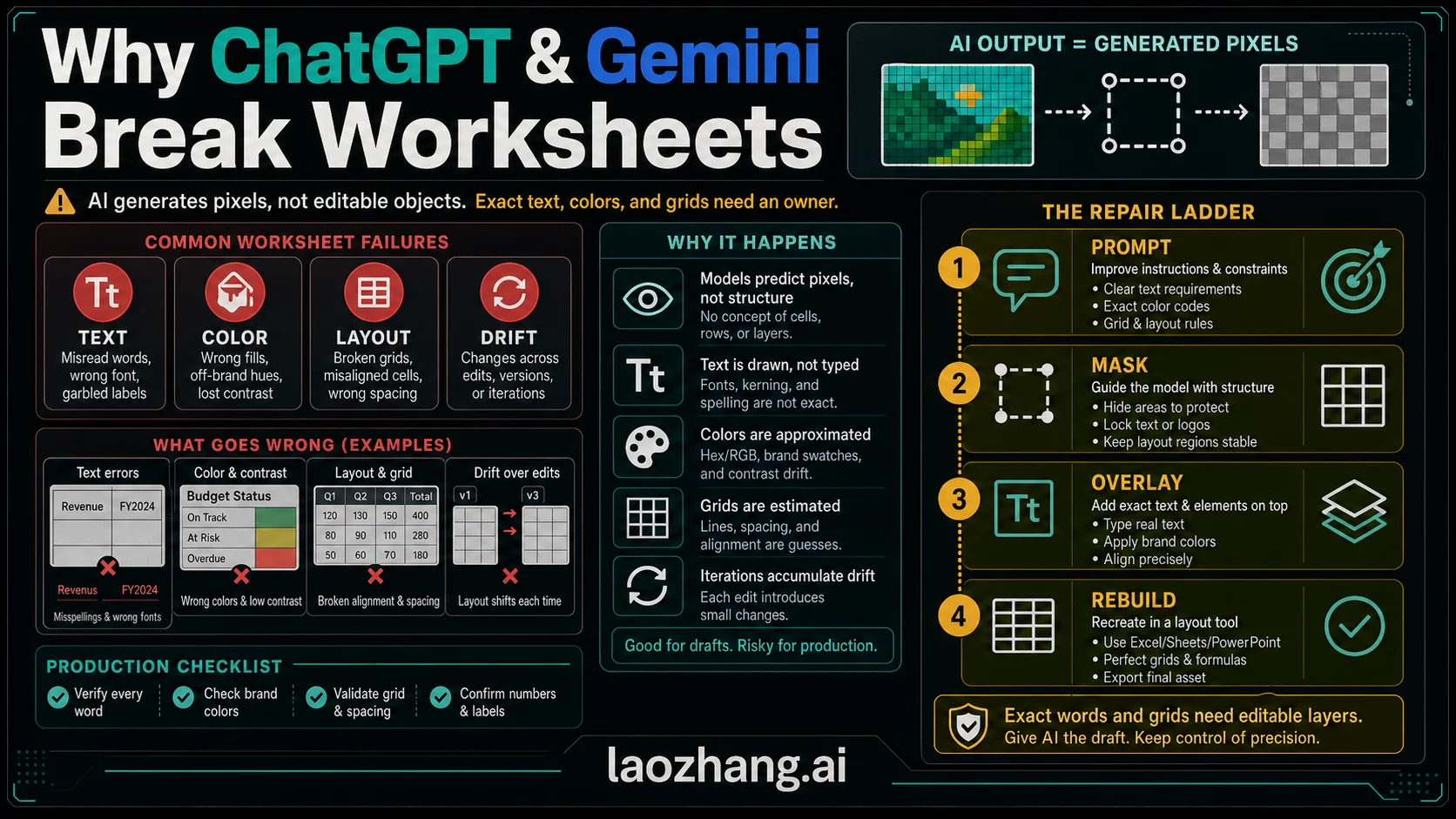
Readable labels, logos, packaging copy, UI screenshots, and diagram text are still where generative expansion breaks trust fastest. If text or exact geometry matters, expand the scene first and repair the critical elements in a design or photo editor afterward.
Switch tools when the job changes.
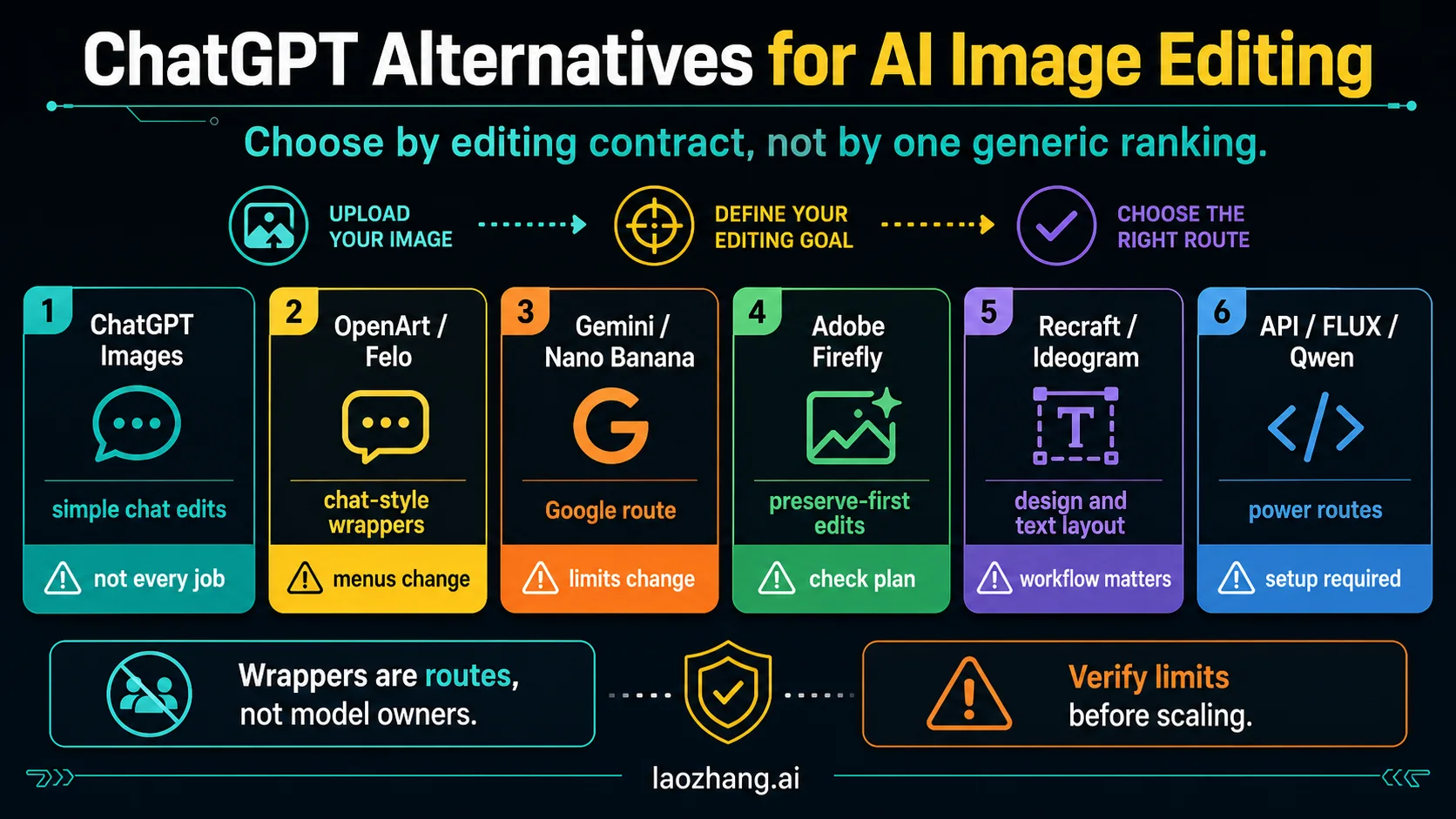
Start with one-click uncrop tools for fast ratio fixes. Move to Photoshop when continuity matters. Move to ChatGPT when the scene itself needs creative reinterpretation. Move to Vertex or OpenAI APIs when the work has to scale or repeat. The best workflow is often not one tool. It is the right handoff between tools.
Which Tool Should You Open Today?
If you only need the image to fit a new format, open Clipdrop Uncrop or another dedicated uncrop workflow first.
If the image matters and you cannot afford a weird shoulder, broken edge, or invented product contour, open Photoshop first.
If you want the model to co-design the wider scene with you, open ChatGPT Images first.
If you need a system, not just a session, open Vertex AI Imagen or OpenAI’s image APIs based on whether your workflow is mask-rigid or conversation-driven.
That is the real answer here. Not a universal winner. A better workflow choice.
Frequently Asked Questions
What does it mean to expand an image with AI?
It usually means using generative outpainting to add new content beyond the original frame instead of stretching the existing pixels. Some tools call this uncrop, some call it generative expand, and some treat it as a masked edit mode.
What is the fastest option for most people?
If your real problem is aspect ratio, a dedicated uncrop tool is the fastest. If your real problem is “keep this photo believable while adding space,” Photoshop is usually the safer fast answer.
What is best for product photos?
Photoshop or Vertex AI Imagen. Product work punishes edge mistakes quickly, and both of those routes are better when you need preserve-first behavior.
Is uncrop different from outpaint?
Usually yes. “Uncrop” usually implies quick aspect-ratio extension. “Outpaint” usually implies more explicit generative filling beyond the image boundary, often with masking or stronger control.
Which API is better for image expansion, Vertex or OpenAI?
Choose Vertex when you need explicit masked edit modes and cleaner production structure. Choose OpenAI when you want a more conversational, iterative editing loop.
Why do AI-expanded edges look weird?
Usually because the requested canvas jump was too large, the prompt tried to change both the framing and the subject at the same time, or the tool was not precise enough for the boundary that mattered.