Gemini API Tier 3 (T3) Upgrade: $1,000 + 30 Days, Same API Key
Gemini API Tier 3 (T3) isn't a special key: the billing account upgrades itself after $1,000 in paid Google Cloud spend and 30 days from the first payment.
On this page
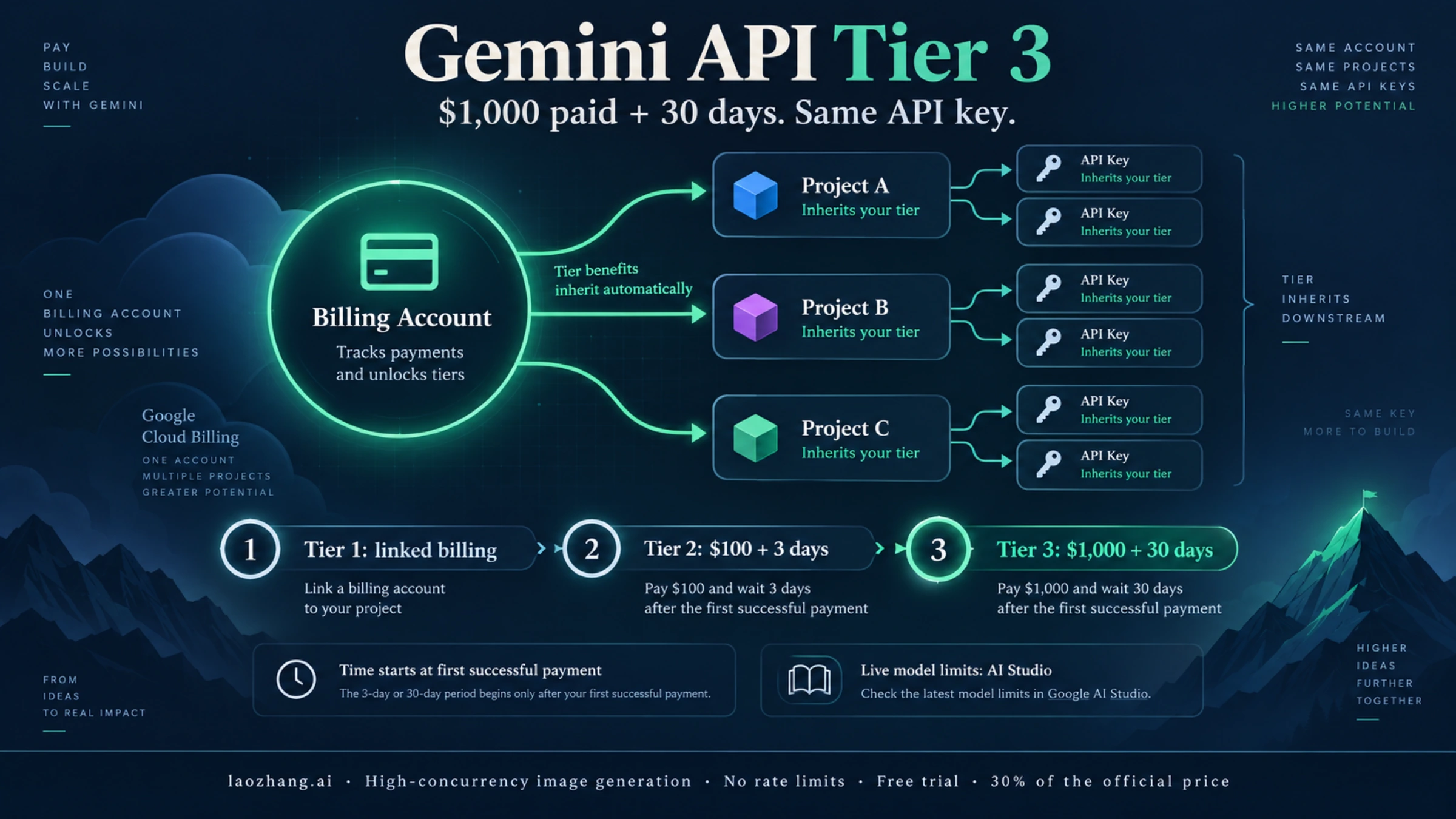
There is no Gemini "T3 key" to apply for. Tier 3 is a usage tier that belongs to the Cloud Billing account linked to your project, and every API key in that project inherits it. As of October 5, 2026, Google's rate-limits page sets the bar at $1,000 paid plus 30 days from your first successful payment. Spend on any Google Cloud service billed to that account counts, not only Gemini API calls. Once both conditions are met, the upgrade happens automatically, usually within 10 minutes, and you confirm it in the Billing Tier column of the AI Studio Projects page.
Tier 3 does not unlock new models or lower prices. It raises your per-model rate limits, the spend you can push through in 10 minutes, the monthly cap, and the size of your Batch queues. Google does not publish a Tier 3 RPM number. Your actual limits appear on the AI Studio rate-limit page.
Gemini API tier requirements: Tier 3 needs $1,000 paid and 30 days
Google's rate-limits and billing pages list the same four tiers. The spend limit is evaluated over a rolling 10-minute window; the monthly cap applies to the whole billing account.
| Tier | How you qualify | Spend limit per 10 minutes | Monthly billing-account cap |
|---|---|---|---|
| Free | An active project or free trial | N/A | N/A |
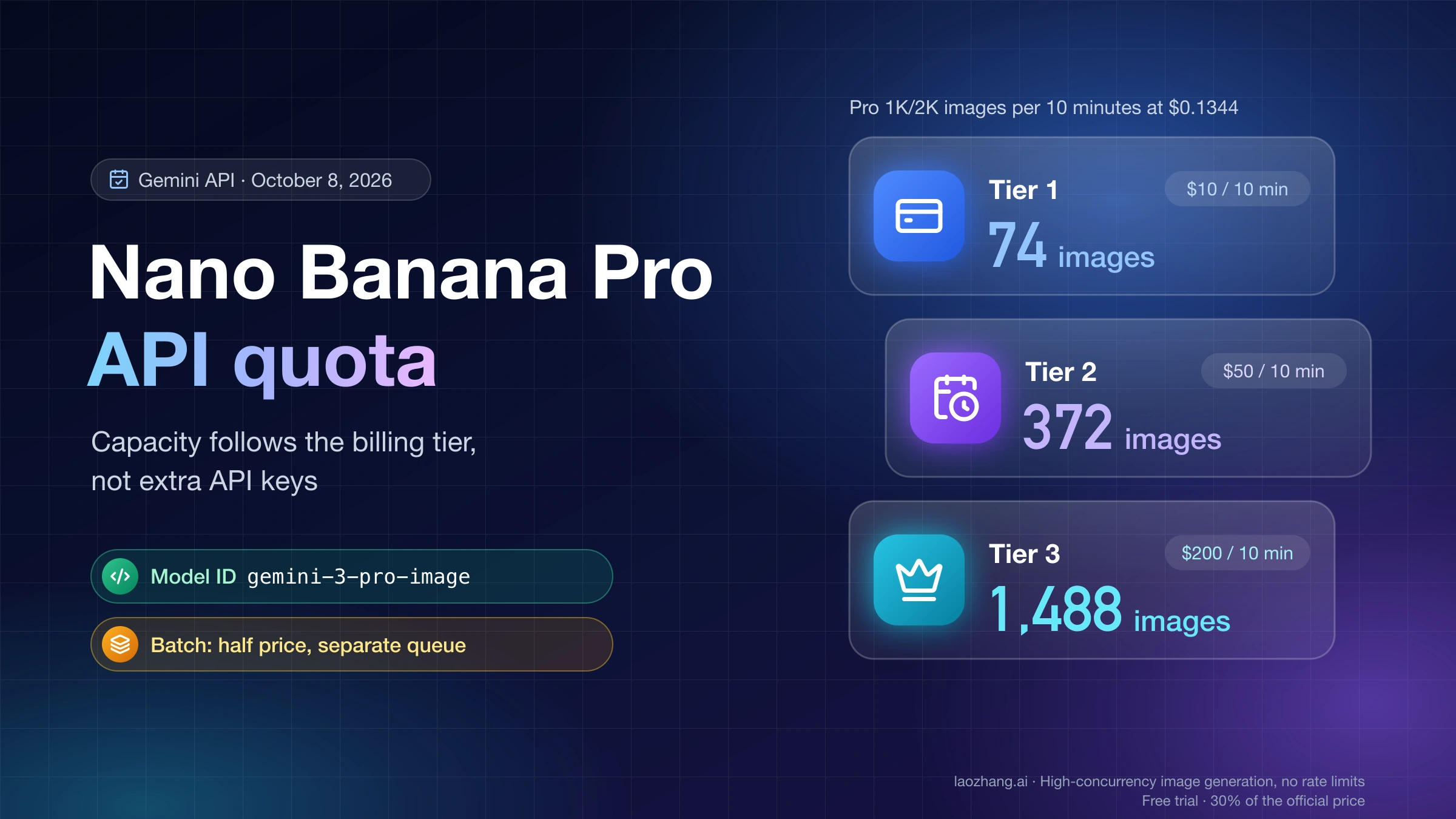
| Tier 1 | Set up and link an active billing account (prepay at least $5 if you're on Prepay) | $10 | $250 |
| Tier 2 | $100 paid + 3 days since the first successful payment | $50 | $2,000 |
| Tier 3 | $1,000 paid + 30 days since the first successful payment | $200 | $20,000–$100,000+ |
A few conditions decide whether that table works for you:
- The clock starts at the first successful payment, not at your first API call or at account creation. Card payments usually confirm instantly; Google notes that bank transfers can take several days, and upgrades only happen after a payment is confirmed.
- Cumulative spend counts across Google Cloud. Tier 2 and Tier 3 are based on total spend on Google Cloud services for the billing account, including but not limited to the Gemini API. Compute, storage or BigQuery charges on the same account move you toward the threshold.
- Credits are a weak bet. The $300 Google Cloud Welcome credit can't pay for Gemini API or AI Studio usage on accounts opened after March 2, 2026. The tier table speaks of amounts paid, and Google doesn't say promotional credits count, so plan on real payments.
- Approval is not absolute. Google says meeting the criteria is "generally sufficient," but "in rare cases an upgrade request may be denied based on other factors identified during the review process."
The fastest calendar path is 30 days after your first payment. Spending $1,000 on day 2 doesn't shorten it.
There is no T3 API key: the tier belongs to your billing account
Google's billing page says it directly: tiers, rate limits and billing-account caps are all determined at the billing account level. That has practical consequences:
- API keys have no tier of their own. They inherit the tier and billing status of their project. Creating a new key after you reach Tier 3 changes nothing, and neither does keeping an old one.
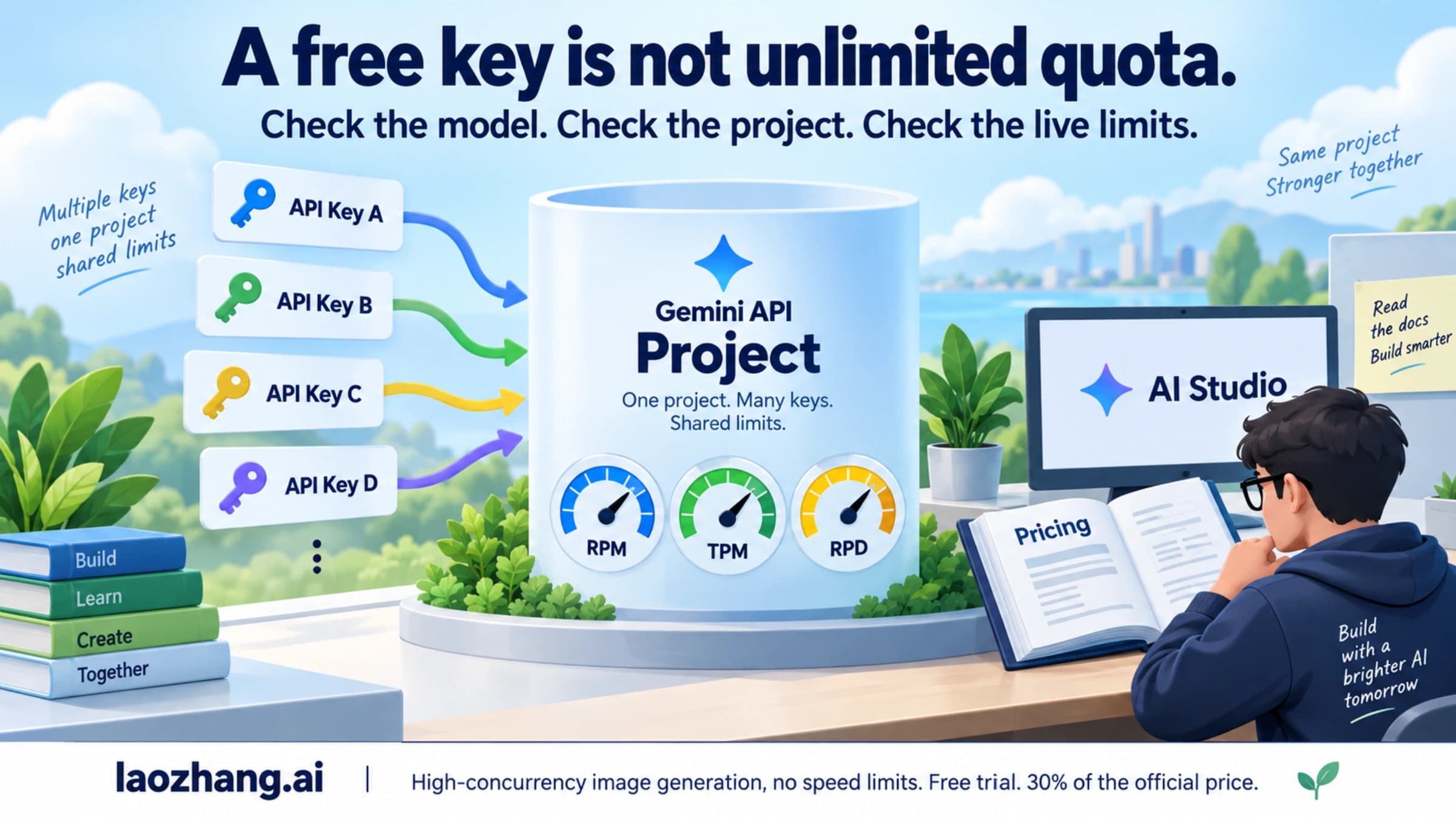
- Rate limits are applied per project, not per key. Ten keys in one project share one set of limits.
- Every project on the billing account shares the tier and the monthly cap. If three projects are linked to a Tier 3 account, all three are Tier 3, and their Gemini API spend adds up toward the same $20,000-plus monthly cap.
- Moving a project moves its tier. Link the project to a different billing account and it switches to that account's tier. Unlink billing and it returns to Free.
If your organization already has a Cloud Billing account with more than 30 days of history and $1,000 or more in paid Google Cloud spend, linking your Gemini project to that account should put it on Tier 3 without a new waiting period, because projects inherit the account's tier. Check the Projects page afterward rather than assuming it.
How to upgrade to Gemini API Tier 3, step by step
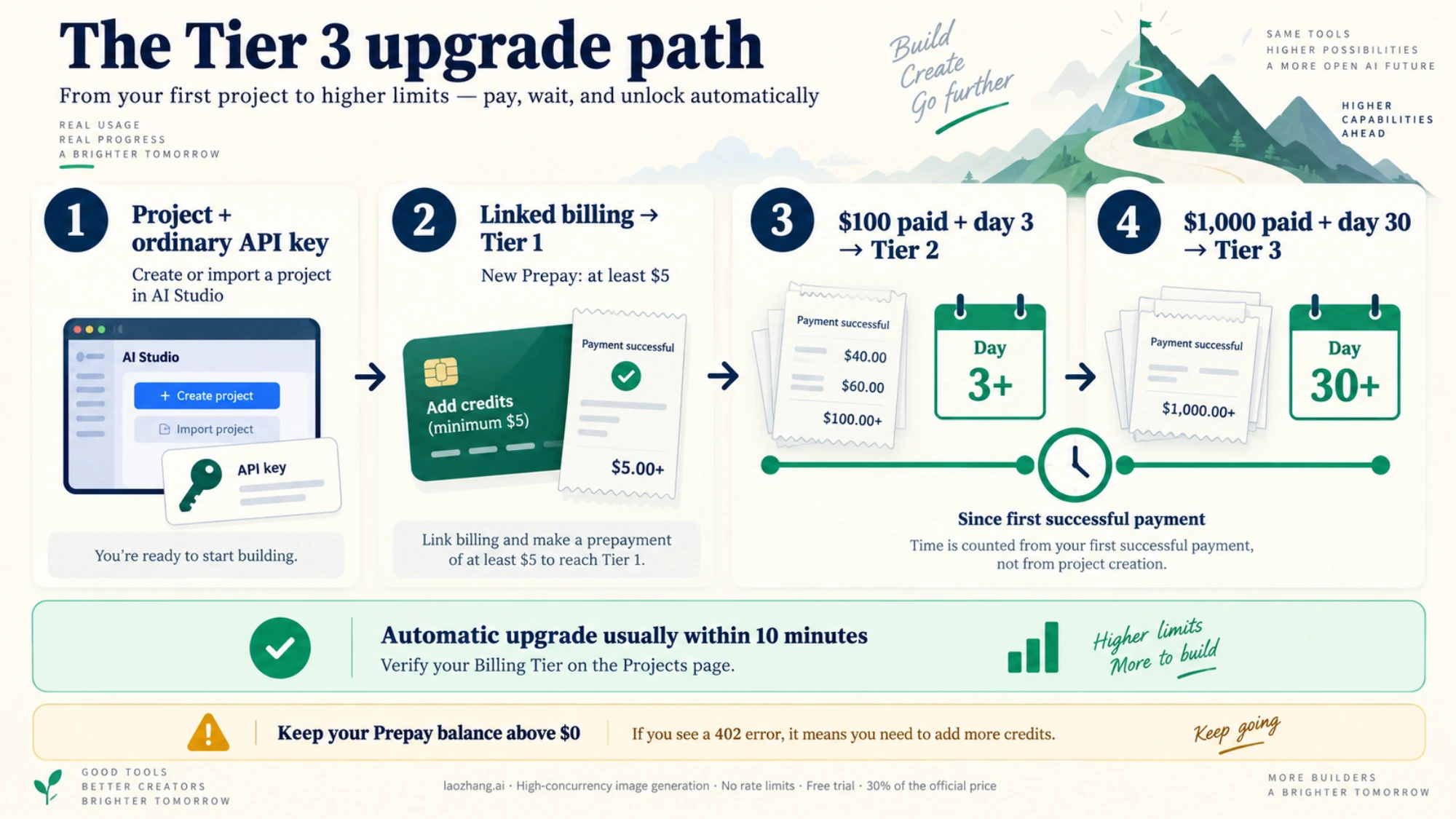
- Get a project and key in AI Studio. New users get a default project and API key after accepting the terms. If you already use Google Cloud, import your existing project from Dashboard → Projects → Import projects. The Google AI Studio API key guide covers key creation and the first test call in detail.
- Set up billing in AI Studio to reach Tier 1. On the API keys page or the Projects page, click Set up billing in the Billing Tier column, pick or create a Cloud Billing account, and prepay at least $5. Since March 23, 2026, Prepay is the default for new users; some accounts are offered Postpay or a choice. The upgrade from Free to Tier 1 is typically instant. For the Prepay and Postpay details, see Gemini API billing tiers.
- Reach Tier 2 at $100 paid and day 3. Keep using the API (or other Google Cloud services on the same account). Once the account has paid $100 and three days have passed since the first successful payment, Tier 2 usually appears within 10 minutes.
- Reach Tier 3 at $1,000 paid and day 30. Same mechanism, higher bar. Note the day you made your first payment so you know when to check.
- Keep the Prepay balance above $0 the whole time. When it hits $0, every API key in every project on that billing account stops at once and requests fail with HTTP 402 until you add credits. Auto-reload on the AI Studio Billing page avoids that.
Two caps can stall the climb. At Tier 1, the billing account can spend $250 a month; at Tier 2, $2,000. Normally Tier 2 arrives on day 3, long before Tier 1's cap matters. If the Tier 2 upgrade fails to appear, though, a busy account can hit $250 and be paused for every linked project until the 1st of the next month. Check the tier on day 3 instead of discovering it from a production outage.
What Gemini API Tier 3 changes, and what stays the same
Per-model RPM, TPM and RPD: shown in AI Studio, not in the docs
Rate limits are set per model and per tier, measured in requests per minute (RPM), input tokens per minute (TPM) and requests per day (RPD); image models also have images per minute. Google no longer prints these numbers in its documentation. The rate-limits page sends you to the AI Studio rate-limit page for your active limits and adds that "specified rate limits are not guaranteed and actual capacity may vary." Any page quoting a fixed Tier 3 figure such as "4,000+ RPM" is not citing Google's current docs. Read your own numbers from AI Studio after the upgrade, model by model.
RPD resets at midnight Pacific time. Priority inference has its own limits, by default 0.3x the standard limit for each model and tier.
Spend limits: $200 per 10 minutes and a $20,000-plus monthly cap
The 10-minute spend limit is the one most likely to throttle an expensive workload, and it rises fourfold from Tier 2 to Tier 3. Converted to a rough hourly ceiling (six 10-minute windows per hour, assuming perfectly even spend), the numbers look like this:
| Tier | 10-minute limit × 6 | Hours of full-speed spend to reach the monthly cap |
|---|---|---|
| Tier 1 | $10 × 6 = $60 per hour | $250 ÷ $60 ≈ 4.2 hours |
| Tier 2 | $50 × 6 = $300 per hour | $2,000 ÷ $300 ≈ 6.7 hours |
| Tier 3 | $200 × 6 = $1,200 per hour | $20,000 ÷ $1,200 ≈ 16.7 hours |
The last column is a warning, not a target: a job that runs flat out at the spend limit exhausts even the lower end of the Tier 3 cap in under a day, and the billing account then pauses until the 1st. If you plan to spend near that level, set project spend caps in AI Studio (Spend → Monthly spend cap → Edit spend cap) and request a higher account cap early. Hitting the 10-minute limit returns 429 RESOURCE_EXHAUSTED; Google's fixes are to wait and retry, make requests cheaper (smaller context, shorter output), or request an increase if it happens during normal use.
Batch API queues: up to 1 billion enqueued tokens per model
Batch jobs have limits separate from interactive calls, including a cap on tokens queued across all active batch jobs for each model. As listed on Google's rate-limits page on October 5, 2026, Gemini 2.5 Pro allows 5,000,000 enqueued tokens at Tier 1, 500,000,000 at Tier 2 and 1,000,000,000 at Tier 3. Gemini 3.8 Flash goes from 3,000,000 to 400,000,000 to 1,000,000,000. For high-volume image work, the Nano Banana Pro quota guide looks at what Tier 3 means for image jobs.
What stays the same: models, prices and data terms
Tier 3 buys capacity, nothing else. The pricing page lists one paid price per model, not a price per tier, so a token costs the same at Tier 1 and Tier 3. The models available to paid projects are the same across paid tiers. The data terms are the paid-service terms that already applied from Tier 1, under which your prompts and responses are not used to improve Google products.
How to check your Gemini API tier in AI Studio
Open the Projects page and read the Billing Tier column for your project. It shows the tier and billing plan. If an action is needed, the column (or the Status column) shows one of three messages:
- Set up billing: no billing account is attached, so the project is on Free.
- Set up Prepay: a billing account is attached, but it must use Prepay and that isn't set up yet.
- No credits: Prepay is required and either the account isn't set up or the balance is at $0.
For limits, use the rate-limit page; for balance, payments and auto-reload, the Billing page; for spend caps, the Spend page. Spend graphs can take up to 24 hours to update, so a fresh payment may not show there yet even after the tier has changed.
Waiting 30 days for Tier 3: what to do with the traffic now
The 30 days can't be shortened, but most workloads can get through the wait on Tier 2:
- Move non-urgent work to the Batch API. Batch requests have their own limits, cost 50% of the standard price, and target a 24-hour turnaround. Nightly enrichment, document processing and bulk image jobs don't need interactive quota.
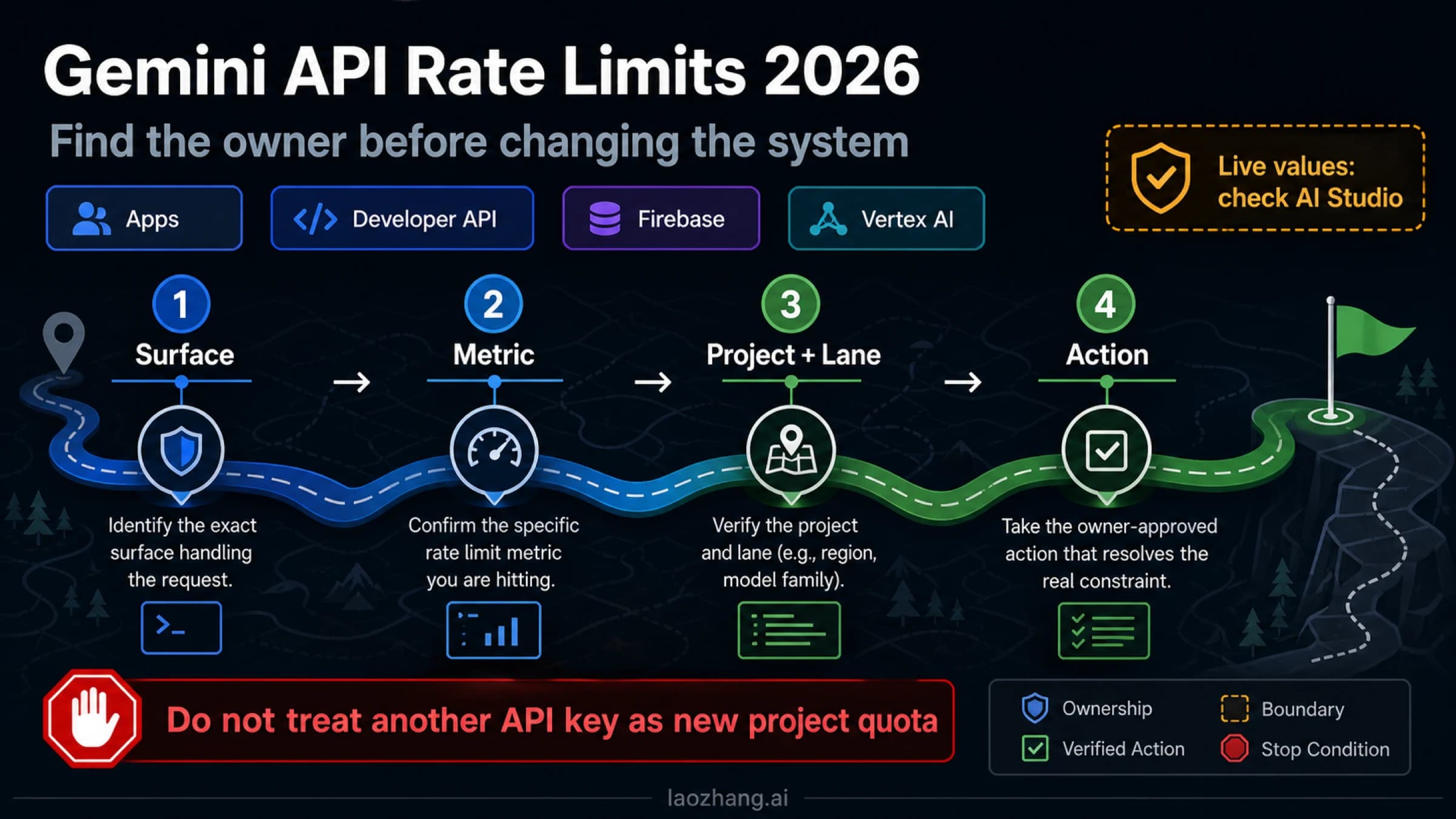
- Smooth the interactive traffic. Put a queue in front of the API that stays under the limits shown in AI Studio, retry
429errors with exponential backoff and jitter, and cut the expensive requests that eat the 10-minute spend limit. The Gemini API rate limits guide walks through which limit a given 429 came from. - Ask for more inside your current tier. The rate-limits page links a "Request paid tier rate limit increase" form (titled "Gemini API Quota and Billing Cap Increase Request"). Google promises no outcome: "We offer no guarantees about increasing your rate limit, but we'll do our best to review your request."
- Use a paid gateway if a deadline can't wait. A pay-as-you-go API service such as LaoZhang API serves Gemini models through the Google Gen AI SDK format from a prepaid balance. It is a separate contract with its own limits, pricing and terms; your Google tier, data terms and support don't carry over, so check those before routing production traffic there.
Disclosure: laozhang.ai is our own service. Its prices are platform pricing, not an independent comparison.
Extra keys in the same project won't help, since limits are per project.
Tier didn't upgrade, or dropped from Tier 3 to Tier 1
Google documents the upgrade as automatic. Developer reports on the Google AI Developers Forum show it doesn't always behave that way:
- In an April 2026 thread, a team said it had spent nearly $2,000 over more than a month and was still shown as Tier 1, then hit the $250 monthly cap and was blocked. Another developer wrote that submitting the "Gemini API Quota and Billing Cap Increase Request" form fixed the same problem for them more than once.
- In an August 19–25, 2026 thread, several developers reported billing accounts dropping from Tier 3 to Tier 1 without notice, with production traffic suddenly getting 429 errors. A Google staff member posted a dedicated downgrade report form on August 24 and wrote on August 25 that the entries submitted so far had been fixed. That report form shows as closed as of October 5, 2026.
These are developer reports, not documentation, so treat them as a recovery path rather than as a known current bug. If your tier looks wrong:
- Confirm which billing account the project is linked to. A project moved to another billing account takes that account's tier.
- Confirm the numbers. Paid amount, date of the first successful payment, and whether the last payment has cleared.
- Tell the errors apart.
402means the Prepay balance is at $0.429 RESOURCE_EXHAUSTEDmeans a rate or 10-minute spend limit. A message saying your billing account "has exceeded its monthly spending cap" (wording quoted in the April forum thread) means the account's monthly cap, which pauses service until the 1st. - Wait 10 minutes after meeting the criteria, then reload the Projects page.
- Submit the increase form linked from the rate-limits page, with your project number and billing account ID ready (forum staff asked for the project number, not the project ID). Describe the expected tier, the paid amount and the payment date.
If you are also seeing free_tier_requests with limit: 0 on a project you pay for, that is a different problem with its own fix: see Gemini API paid tier getting free_tier_requests limit 0.
Getting the Gemini API key: 2026 rules that block old keys
Tier 3 works through an ordinary API key, but key handling changed in 2026 and an old key can fail regardless of your tier:
- New keys are authorization keys. Since May 28, 2026, every key created in AI Studio is an auth key bound to a service account and restricted to the Gemini API by default.
- Unrestricted standard keys are rejected. Standard keys with explicit restrictions keep working. To fix an older key, open the AI Studio API Keys page, click its "Unrestricted" label, choose Add restrictions and restrict it to the Gemini API only. Since May 7, 2026, dormant unrestricted keys are blocked and carry a "Blocked" tag.
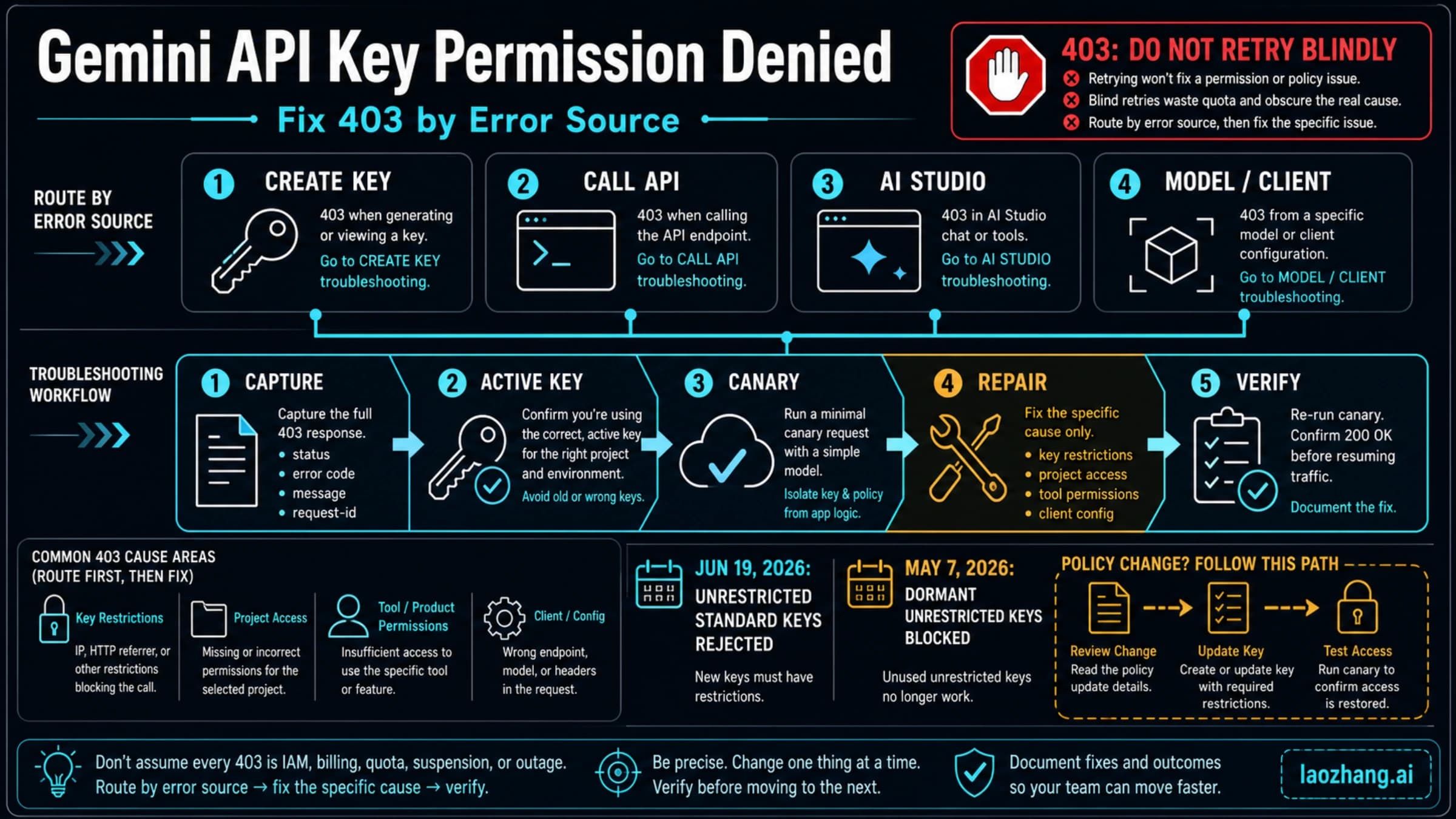
- Key creation needs IAM permissions. "You do not have permission to create a key in this project" means you need a role such as Project Editor; the full permission list and 403 fixes are in Gemini API key permission denied.
- Keep the key server-side. Read it from the
GEMINI_API_KEYorGOOGLE_API_KEYenvironment variable (if both are set,GOOGLE_API_KEYwins), never ship it in browser or mobile code, and never commit it to Git. At Tier 3, a leaked key can run up charges as fast as the $200-per-10-minute spend limit allows.
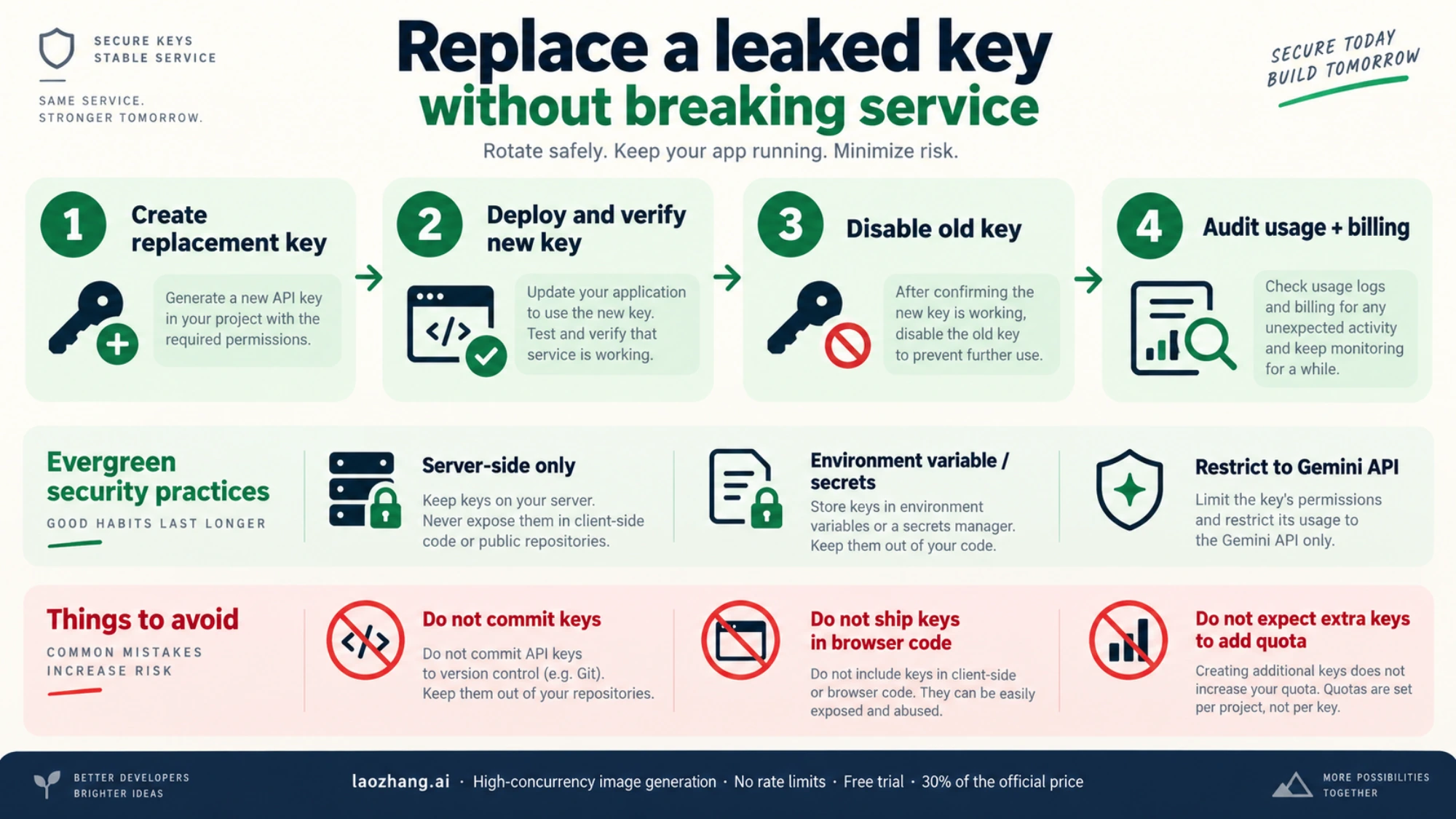
If a key leaks, follow Google's checklist in that order: generate a replacement key, deploy your code with it, disable the leaked key once the new one is verified, then audit billing and usage in the Cloud Console. Deleting the old key before the new one is live causes avoidable downtime.
Gemini API Tier 3 FAQ
How many requests per minute does Gemini API Tier 3 allow? Google doesn't publish a Tier 3 RPM figure. Limits differ by model and are shown for your project on the AI Studio rate-limit page; Google adds that they are not guaranteed. The fixed figures Google does publish for Tier 3 are spend limits: $200 per 10 minutes and a $20,000–$100,000+ monthly account cap.
What is the API limit for Gemini? There is no single number. Each model has its own RPM, TPM and RPD per tier, applied per project, plus the account-level spend limits in the tier table above. Your live numbers are on the AI Studio rate-limit page.
Is the Gemini API free tier unlimited? No. The free tier has per-model rate limits and only covers certain models. The Gemini API free tier guide lists what is still free and where to see the limits.
Do Google Cloud credits count toward Tier 3? The $300 Welcome credit can't pay for Gemini API usage on accounts opened after March 2, 2026, and the tier rules refer to amounts paid. Google doesn't say promotional credits count toward the thresholds, so budget the $1,000 as real payments.
Can several projects be on Tier 3 at once? Yes. Every project linked to a Tier 3 billing account is Tier 3, but their Gemini API spend is added together against one monthly cap.
Is there a tier above Tier 3? Not in Google's tier table. Tier 3's monthly cap is listed as $20,000–$100,000+, and Google says you can request an increase to the default caps through the same increase form.
Sources4
External pages this guide links to, in the order they appear. Last updated Oct 5, 2026.
Sources4
External pages this guide links to, in the order they appear. Last updated Oct 5, 2026.