Gemini App for Mac: Official Download, Requirements, and Install Guide (2026)
The official Gemini Mac app is live now. This guide explains where to download it from Google, which Macs and accounts qualify, how the DMG install works, and why the App Store listing is not the main Mac route.
On this page
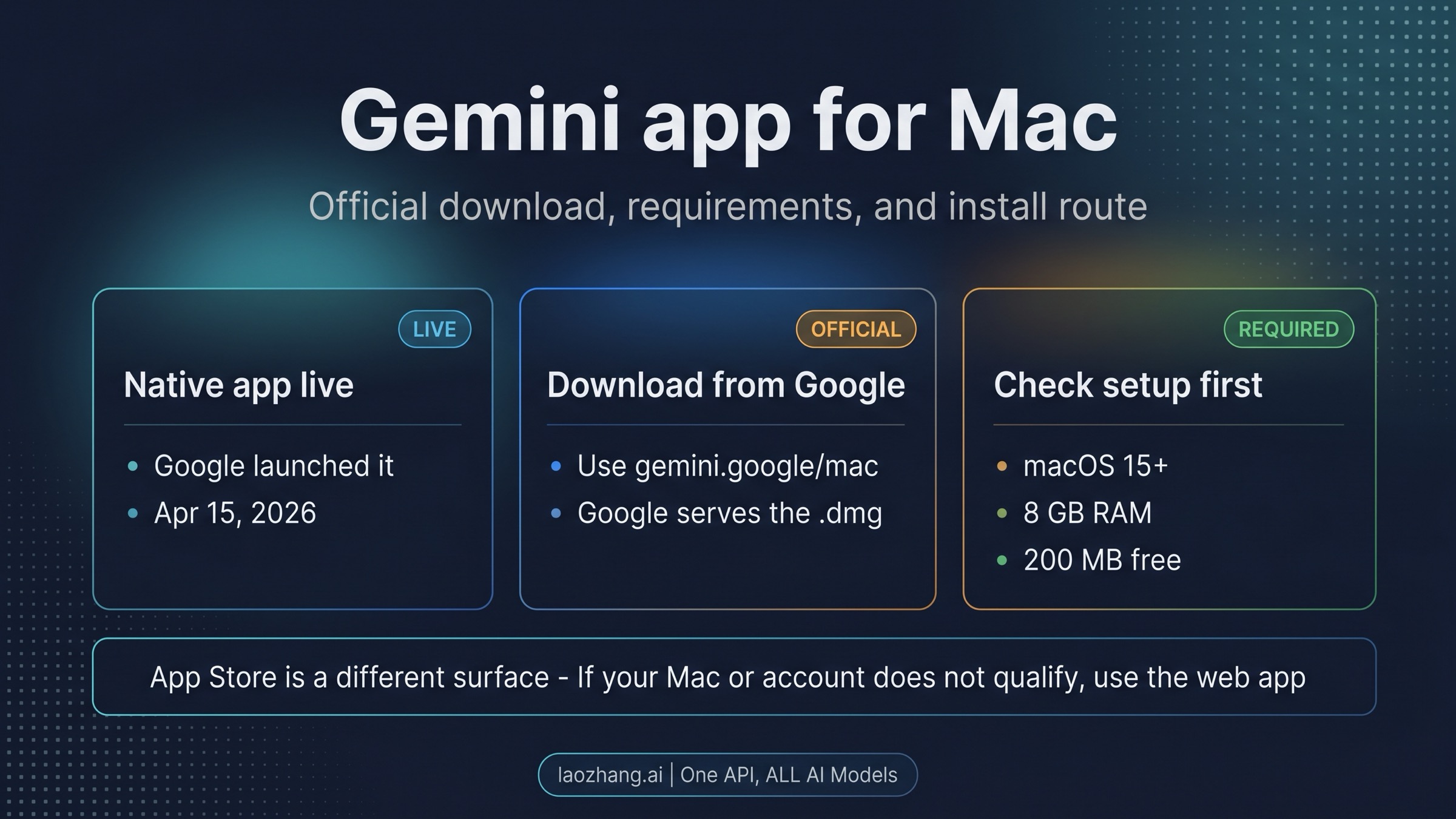
Google now has an official Gemini app for Mac. As of April 15, 2026, the documented install route is gemini.google/mac, where Google serves the Mac .dmg, not the App Store listing many readers still encounter first.
If your Mac runs Sequoia 15 or later, has at least 8 GB of RAM and 200 MB of free space, and you can sign in with an eligible Google account, the native app is now the fastest path. If not, stop there and use the web app instead of forcing an unsupported install.
Older browser-only coverage is now stale, and the Apple listing is still a different surface. The right first move is to decide whether your setup qualifies, then either install from Google's Mac page or stay on the web.
The fast install answer
Before you spend time clicking around, the current Mac-install contract is short:
| Question | Current answer |
|---|---|
| Does a native Gemini Mac app exist now? | Yes. Google launched it on April 15, 2026. |
| What is the official download route? | Google's Mac page at gemini.google/mac. |
| What does the installer look like? | A Mac .dmg download from Google. |
| What does my Mac need? | macOS Sequoia 15.0+, 8 GB RAM, 200 MB free disk space. |
| Which account types work? | A personal Google account, or a work/school account with Gemini enabled by the admin. |
| Should I start with the App Store listing? | No. That is not Google's documented Mac install flow. |
| What if my setup does not qualify? | Use the Gemini web app instead. |
Many Mac-focused Gemini pages were still effectively asking, "Will Google ship a Mac app?" That is no longer the useful question. The practical question now is which surface you should trust now that the app exists, and whether your Mac and Google account clear the current baseline.
Check whether your Mac qualifies before you download
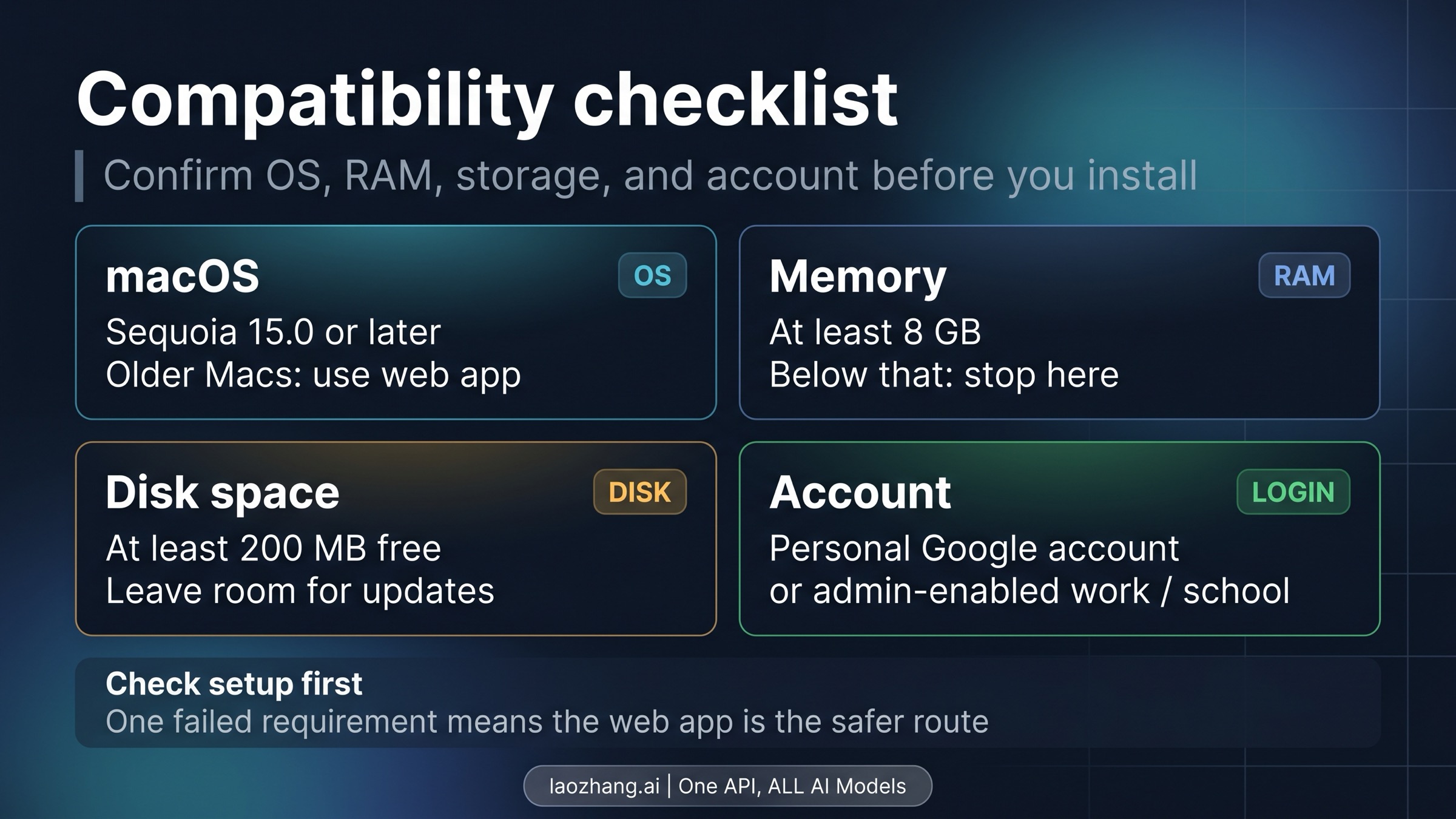
Google's own help page sets a clear minimum line for the Mac app: macOS Sequoia 15.0 or later, at least 8 GB of RAM, and at least 200 MB of free storage. That matters because this is not one of those soft "recommended specs" notes that readers can safely ignore. If your Mac is older than Sequoia or short on memory, the right answer is not to hunt for a workaround. It is to use the web app.
The account rule matters just as much. Google says the Mac app works with a personal Google account, or with a work or school account whose admin has enabled Gemini. That means the native install question is not only about your hardware. It is also about whether your Google account can actually use Gemini on that surface. If you are on a managed account and the app opens but sign-in or access fails, the problem may be administrative policy rather than your Mac.
The common mistake is treating "download succeeded" as the same thing as "the Mac route is supported for me." The file can download even if your broader setup is not the right fit. Support starts with the whole install contract, not just with whether a .dmg exists.
For readers who do not qualify, the fallback is simple. Use Gemini in the browser. That is a cleaner route than forcing an unsupported install, and it keeps you on the official Google surface instead of pushing you toward outdated tutorials or random wrapper advice.
How to download and install the Gemini Mac app
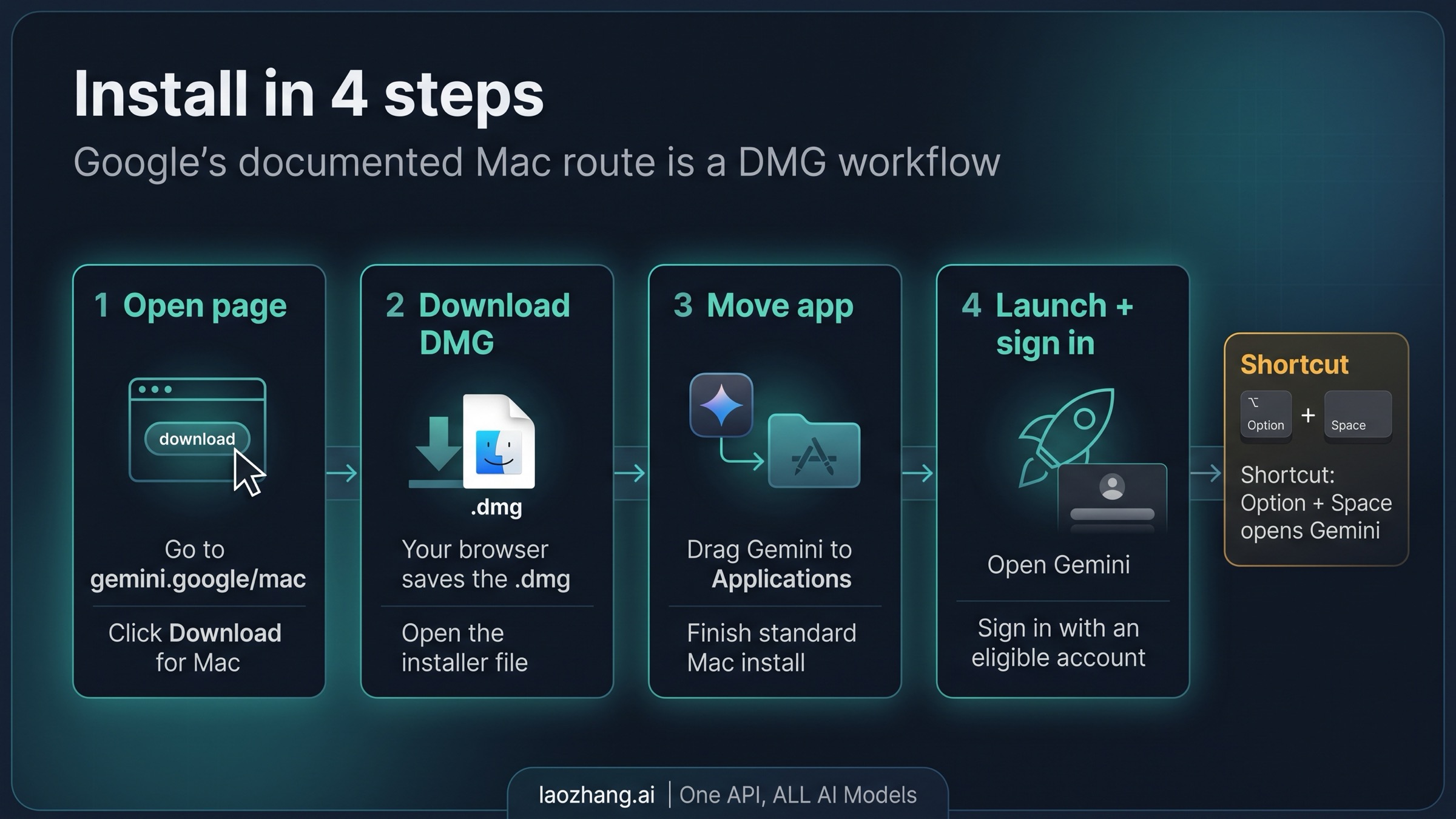
Once your setup qualifies, the installation itself is straightforward:
- Open Google's Mac page at
gemini.google/mac. - Click
Download for Mac. - Open the downloaded
.dmg. - Drag Gemini into
Applications, then launch it and sign in.
That is the official path Google documents today. It is a normal Mac app install, not a hidden beta workflow and not an App Store-first setup. If you are used to consumer AI tools landing in Apple's store, this is exactly where many people get turned around. For Gemini on Mac right now, Google's download page is the trust anchor.
The first launch is also where the desktop app begins to make sense as more than a shortcut to the web. Google's Mac app page highlights the quick-access workflow: Option + Space opens Gemini, and Option + Shift + Space opens the full chat. That kind of keyboard-first access is the real quality-of-life improvement over the browser for many users. It turns Gemini from "a site I visit" into "a desktop tool I can pull up when I need it."
If you want Gemini to interact more deeply with what is on screen, macOS may ask for permissions tied to that workflow. For example, Google's Mac help and product page position the app as something that can read from a shared window when you allow it. The practical rule is simple: grant the permissions you need for the task you actually want to do, but do not assume you must turn on every optional permission just to use the app for ordinary chat.
What the Mac app changes after installation
The biggest difference is not that Gemini suddenly becomes a different model on Mac. The difference is convenience and context. The desktop app is always within reach, it fits keyboard-heavy Mac workflows better than a pinned browser tab, and it is built to feel like a native macOS assistant rather than a page you keep reopening.
That does not mean every Gemini question should now be answered inside this article. If your real question becomes whether a paid Google AI plan is worth it after you install the app, our Gemini Discount Guide 2026 is the better next page. And if you installed Gemini on Mac mainly because you want to explore Google's newer image-generation surfaces, our Nano Banana Pro guide maps the current image routes more clearly than a Mac-install page should try to do.
After the app is installed, the next decision is usually plan choice or workflow depth rather than desktop setup itself. That is why a Mac install page should stay narrow instead of expanding into a full Gemini review.
Why the App Store result still confuses people
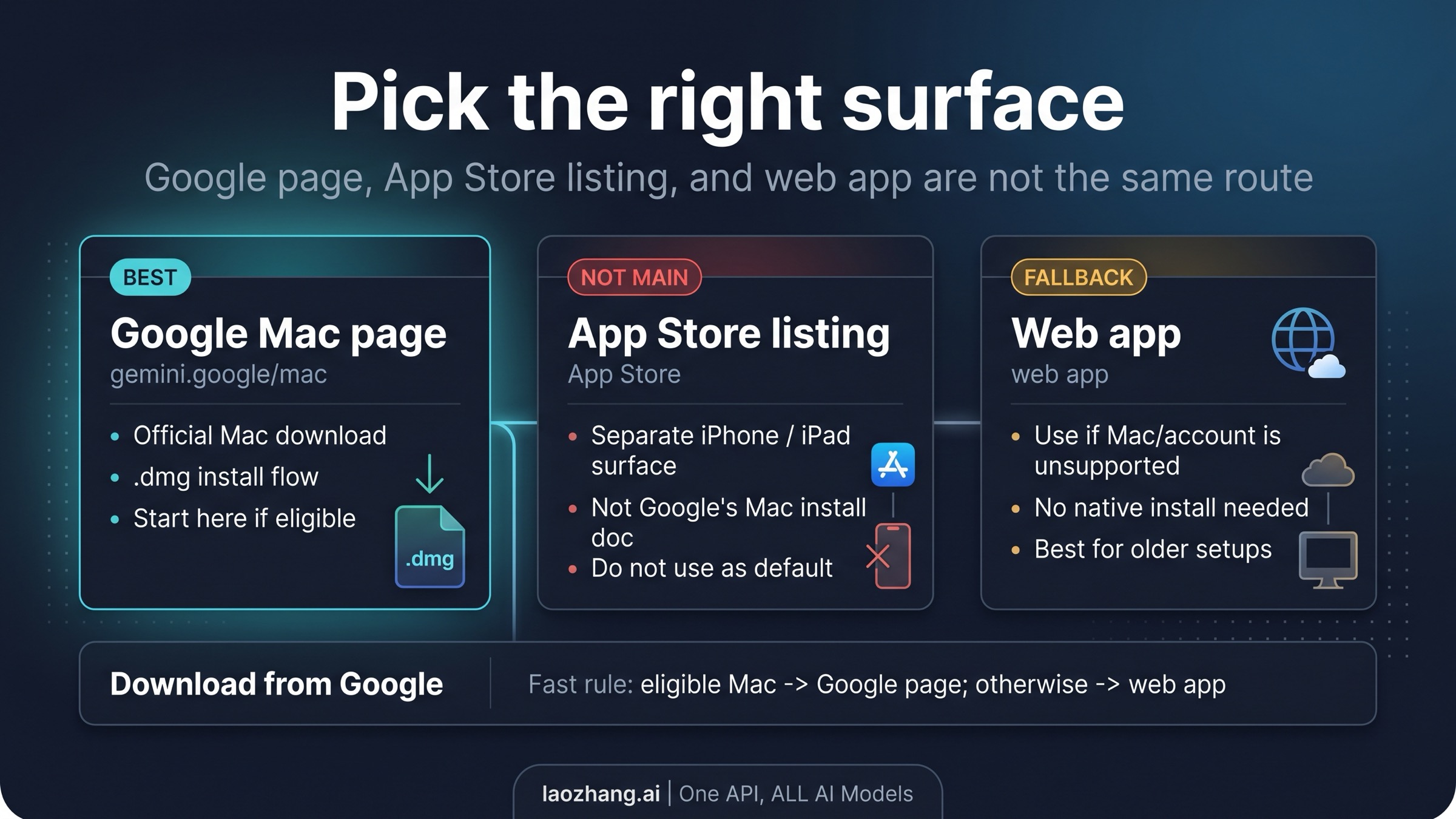
The Apple App Store listing is the main reason many readers still hesitate. Apple's current listing presents Gemini as a compatible iPhone/iPad app, so it still feels like the obvious place to click on a Mac. But Google's own Mac help flow does not send readers there. It sends them to gemini.google/mac for a .dmg install.
That difference matters because the App Store result is better understood as a separate surface than as the main Mac installation contract. It is not the page Google uses to explain the native Mac app workflow, and it is not where Google's Mac help starts. If your goal is "install the official Gemini app on my Mac with the route Google itself documents," the Apple result is the wrong first click.
This is also why old browser-only advice and App Store-first assumptions can both be misleading at the same time. The prelaunch answer was too early. The App Store answer is too sideways. The current official answer is narrower and cleaner: supported Mac plus eligible account equals Google Mac page plus .dmg; unsupported setup equals web app.
The safest route for older or unsupported setups
If your Mac does not meet the Sequoia 15 baseline, if it is short on memory, or if your Google account cannot use Gemini on that surface, the best route is not experimentation. It is restraint. Use the web app.
That matters because unsupported installs create the worst kind of confusion: the app may look close enough to work that readers keep debugging the wrong problem. They end up blaming the download, the installer, or the App Store result when the real issue is simply that the setup was outside Google's current contract from the start.
The web app is not a consolation prize here. It is the correct official fallback. It keeps you on a supported Google surface, avoids unsupported workarounds, and lets you keep using Gemini while you decide whether to upgrade the Mac, change accounts, or wait for broader support.
FAQ
Do I need the App Store to install Gemini on Mac?
No. Google's documented Mac install route starts on gemini.google/mac, where it serves a .dmg download.
What version of macOS do I need?
Google's current help page says macOS Sequoia 15.0 or later.
How much memory and storage does the app need?
Google currently lists at least 8 GB of RAM and at least 200 MB of free disk space.
Can I sign in with a work or school account?
Yes, but only if the admin for that organization has enabled Gemini. Otherwise, a personal Google account is the simpler route.
What if my Mac is older than Sequoia?
Use the web app. The better answer is to stay on the supported browser surface, not to force an unsupported native install.
Does the Mac app have useful shortcuts?
Yes. Google's Mac page says Option + Space opens Gemini, and Option + Shift + Space opens the full chat.
Is the Mac app better than the web app for everyone?
Not necessarily. The native app is better when your Mac qualifies and you want faster desktop access. The web app is better when your setup does not qualify or when you just need Gemini without adding another native install.
Sources1
External pages this guide links to, in the order they appear. Last updated Apr 16, 2026.
Sources1
External pages this guide links to, in the order they appear. Last updated Apr 16, 2026.